
A guide on creating mail filters to organize incoming mail automatically.
Instructions
- Login to the zimbra account you want to add this filter to.
- Click the preferences tab in the heading
- Click Filters in the left sidebar
- By default, the screen will select Incoming Message Filters. If this does not happen automatically, select the Incoming Messages tab
- Click the Create Filter button
- Add a name for the filter and make sure the checkbox for Active is clicked

- Select the conditions you want to add to this filter. The dropdown options change depending on what you are checking.
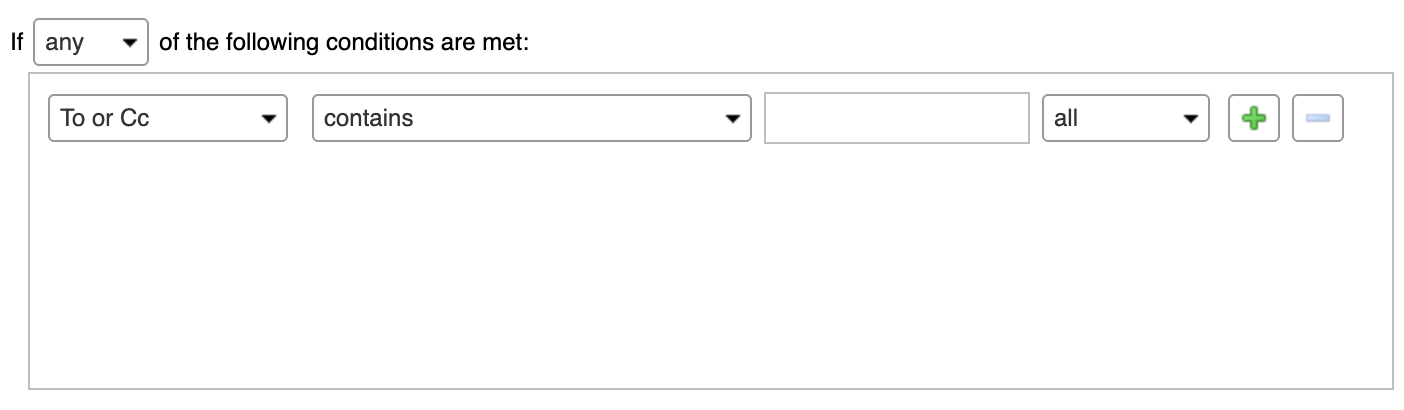
If you need to add more conditions, click the green plus icon. - Select what action(s) you want the filter to complete
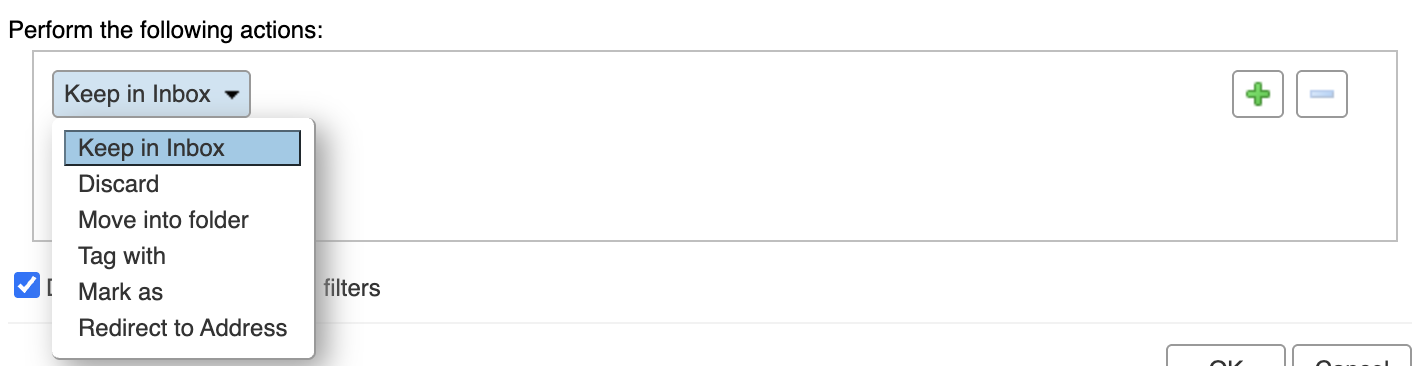
- Click Ok at the bottom when finished.