
Zimbra server can be used with multiple desktop email clients. This document will be used as a guide to assist you in connecting to your email from your Mac using Mac Mail client and IMAP.
Instructions
These instructions assume that you already have an active Zimbra server account and you have a username and password that allow you to access Zimbra webmail. If you do not have a Zimbra server account, please contact your company’s POC before attempting to configure your email client.
Configuring Mac Mail:
- Login to your email account on mail.ossds.net
- Switch to the preferences tab

- Click Accounts in the left sidebar

- Scroll down until you get to the applications section. Click Add Application Code at the bottom of the table
- Input any name you would like. Click Next when ready
- The next screen will give you a passcode. Copy this code for later, as you will not be able to view it again. Close the popup once copied.
-
Launch the ”Mail” application on your desktop.
-
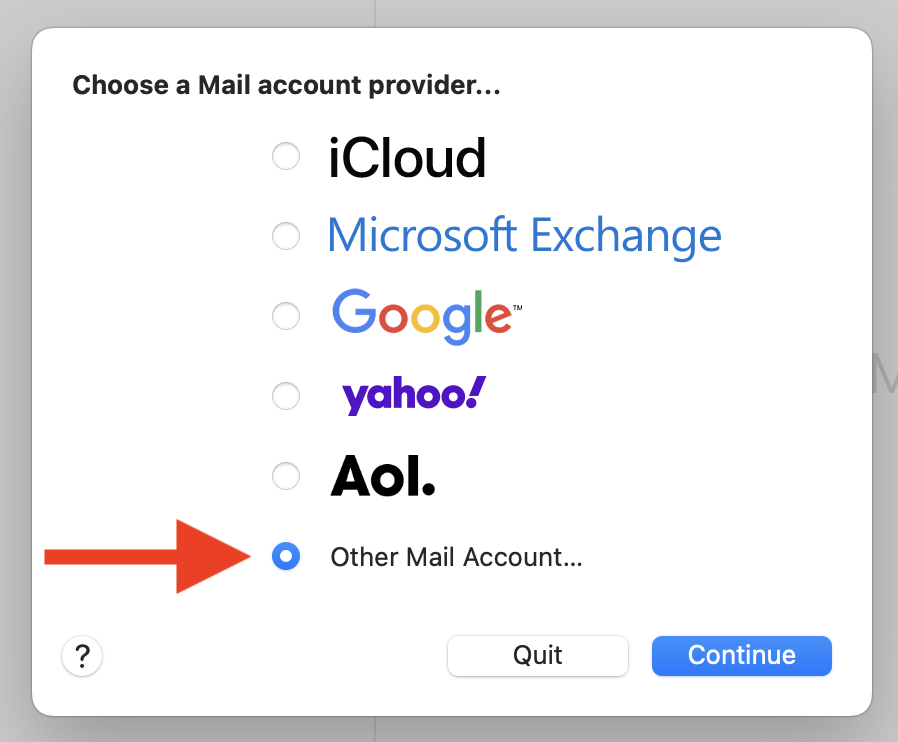
When asked to “Choose Mail Provider” you will select “Other Mail Account”.
-
Then enter your name, e-mail address (e.g. test@example.com) and the passcode from step 6 on the next screen.
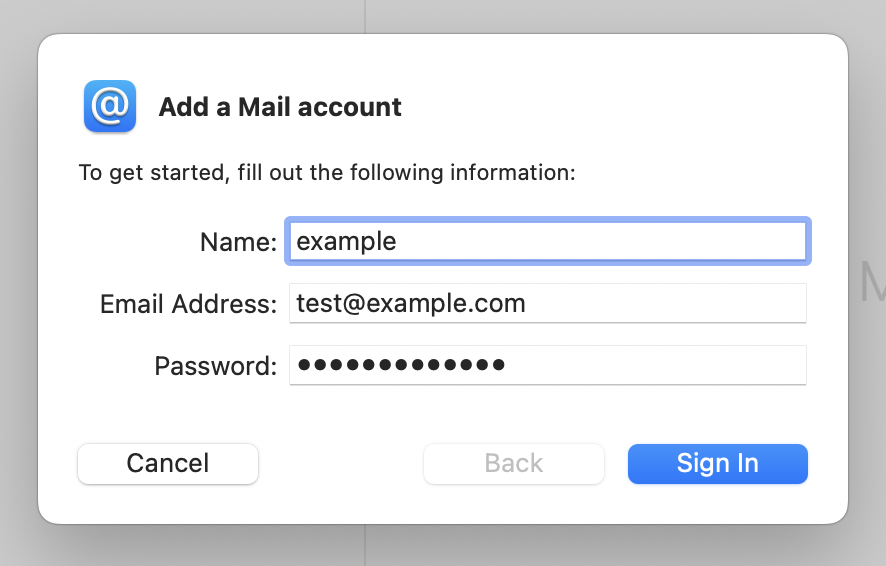
Note: if have have enabled 2FA, then Mac Mail will need to set up as a trusted devices.
-
On the next screen you will need to enter the following information:
-
Email Address: Enter your email address
-
Username: Enter your email address
-
Password: The passcode from step 6
-
Account Type: IMAP
-
Incoming Mail Server: mail.ossds.net
-
Outgoing Mail Sever: mail.ossds.net
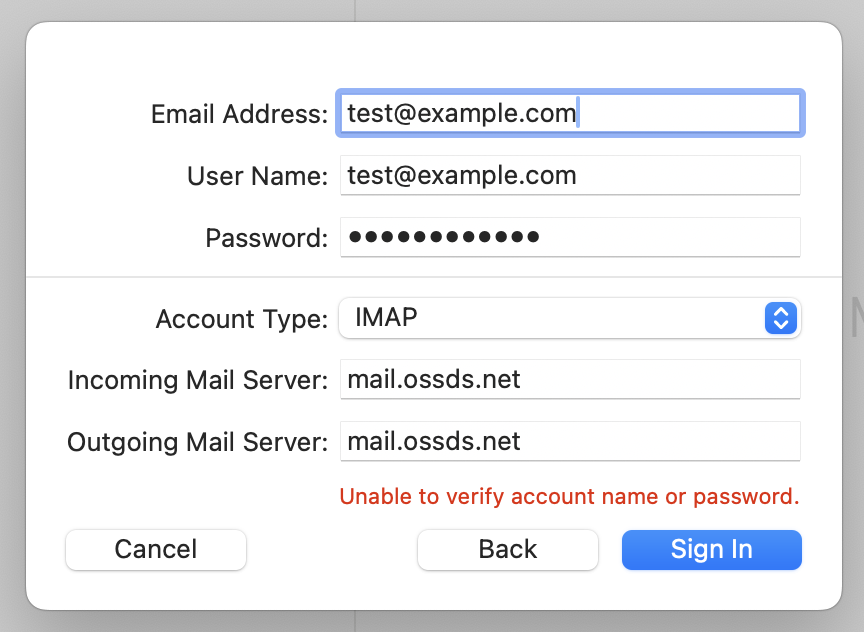
Important: Before clicking “Sign In” verify that the “Username” field contains your complete email address and has not defaulted back to Automatic.
-
-
After all of the previous steps have been completed, your mail will appear in your Mac Mail inbox. This synchronization can take a few minutes to a few hours depending on the size of your mailbox.